
Why Reviewing Print Proofs Before Final Production Matters More Than You Think
You have spent weeks (maybe months) perfecting your brochure, packaging, business cards, or marketing collateral. The design looks great on screen. Your designer has sent you a proof. Now what?
This is the moment that separates a flawless print run from a costly reprint. Yet many business owners and marketing managers rush through this step, glance at the proof on their phone, and hit “approve.” Then the boxes arrive, and something is wrong: a phone number is off by one digit, the colors look muddy, or the headline got cut off at the trim line.
Knowing how to review print proofs before final production is one of the most practical skills you can develop as someone who regularly orders printed materials. This guide gives you a thorough, step-by-step checklist so you can approve with confidence every single time.
What Is a Print Proof, Exactly?
A print proof is a preliminary version of your printed piece, created so you can review and approve it before the full production run begins. There are two main types:
| Proof Type | What It Is | Best For |
|---|---|---|
| Soft Proof (Digital) | A PDF or image file viewed on your computer screen | Checking layout, text, spelling, and general positioning |
| Hard Proof (Physical) | A printed sample produced on a calibrated press or proofing printer | Checking color accuracy, paper feel, and print quality |
Whenever possible, request a hard proof for color-critical jobs like packaging, brand collateral, and high-volume runs. A soft proof is usually sufficient for straightforward text-heavy documents, but it will never give you a perfectly accurate representation of color.
The Complete Print Proof Review Checklist
Follow these steps in order. Checking them systematically reduces the chance of missing something critical.
Step 1: Print Out the Digital Proof
Even if you received a soft proof, print it out at actual size before you start reviewing. Reading on a screen makes it far too easy to skim over errors. A physical printout lets you:
- See the actual dimensions of the piece
- Mark corrections directly on the page with a red pen
- Catch spacing and alignment issues that are invisible on a monitor
If the final piece is a folded brochure or multi-page booklet, fold or trim your printout so it mimics the finished product as closely as possible.
Step 2: Verify Trim Size, Bleed, and Safety Margins
This is a step many people skip entirely, and it is one of the most common sources of print errors.
- Trim size: Is the overall size of the piece correct? If you ordered a 5″ x 7″ postcard, does the proof actually measure 5″ x 7″ at the trim marks?
- Bleed: Does your background color or image extend past the trim line by at least 0.125″ (1/8 inch) on all sides? If not, you risk seeing thin white edges on the finished piece.
- Safety margin: Is all important text and content at least 0.125″ inside the trim line? Anything too close to the edge may get accidentally cut off.
- Trim marks and crop marks: Are they visible on the proof? They should be present but should not appear on the final printed piece.
Step 3: Read Every Single Word
This sounds obvious, but it is the number one area where mistakes slip through. Do not rely on the fact that “you already proofread it.” Fresh eyes on a proof catch things that tired eyes on a Word document missed.
What to check:
- Headlines and subheadings (these are ironically where the biggest typos hide)
- Body copy, line by line
- Phone numbers, email addresses, and website URLs
- Physical addresses and zip codes
- Names and titles of people
- Dates, prices, and any numerical data
- Legal disclaimers and fine print
- Captions under photos
Pro tip: Read the text backward, starting from the last word and working to the first. This forces your brain to look at each word individually instead of reading for meaning, which makes it much easier to spot typos.
Step 4: Check All Phone Numbers, URLs, and QR Codes
This deserves its own step because the consequences of getting contact information wrong are severe. Actually dial the phone numbers listed on the proof. Type every URL into your browser. Scan every QR code with your phone. Confirm they all lead exactly where they should.
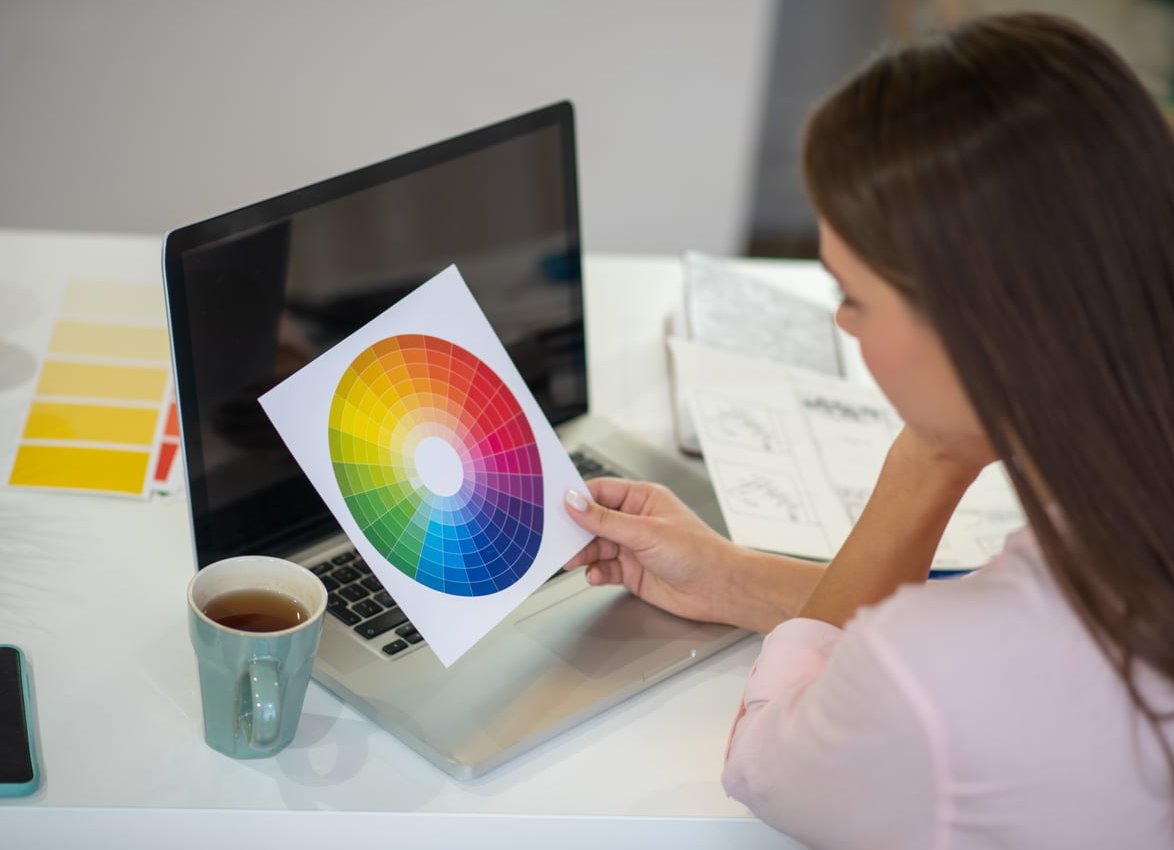
Step 5: Evaluate Color Accuracy
Color is one of the trickiest aspects of print production. What you see on your screen almost never matches what comes off the press perfectly.
- Brand colors: If your brand uses specific Pantone (PMS) colors, confirm that the correct Pantone numbers are specified in the file. For CMYK jobs, compare the proof to a Pantone color bridge guide if you have one.
- Consistency: Are the colors consistent across all pages? Does the same blue on page 1 look the same on page 4?
- Skin tones: If the piece includes photos of people, check that skin tones look natural and not too yellow, magenta, or washed out.
- Background colors: Do solid background colors look even, or are there visible banding or gradient issues?
- Black text: Confirm that black body text is set to 100% K (black only) rather than a rich four-color black, which can cause registration issues on small text.
If color is critical to your project, always request a hard proof. A soft proof viewed on an uncalibrated monitor can be misleading.
Step 6: Inspect Image Quality and Resolution
Images that look fine on screen can print poorly if they are low resolution. Here is what to look for:
- Sharpness: Do images look crisp and detailed, or are they soft, pixelated, or blurry?
- Resolution: Print images should be at least 300 DPI at the final print size. If your designer pulled an image from a website, it is almost certainly 72 DPI and will not print well.
- Placement: Are images positioned correctly? Has anything shifted from the original layout?
- Orientation: Are all images right-side up and not accidentally mirrored or flipped?
- Cropping: Has any important part of an image been cut off by the layout or the trim?
Step 7: Review Fonts and Typography
Font issues are surprisingly common, especially when files move between different software or operating systems.
- Are all fonts displaying correctly, or have any been substituted with a default font?
- Is the font size readable, especially for body copy and fine print? (Body text should generally be no smaller than 8pt for print.)
- Are headings, subheadings, and body text styled consistently throughout?
- Check for awkward line breaks, widows (single words on a line by themselves), and orphans (single lines at the top or bottom of a page).
Step 8: Confirm Page Count and Order
For multi-page documents like booklets, catalogs, or menus:
- Is the total page count correct?
- Are all pages in the right order?
- Do spreads (two-page layouts) line up correctly when the piece is bound?
- Is the cover correct on the front, back, and spine (if applicable)?
- Are page numbers accurate and sequential?
Step 9: Check Special Finishes and Die Lines
If your piece includes any special production elements, verify them now:
- Die cut lines: Are they in the correct position? Will the cut shapes align properly with the design?
- Fold lines: For brochures and mailers, are the panels the correct width? Will the fold hit in the right place?
- Spot UV, foil stamping, or embossing: Are these effects indicated clearly on the proof, and do they align with the intended design elements?
- Perforation or scoring lines: Are they marked and positioned correctly?
Step 10: Get a Second (and Third) Set of Eyes
Never be the only person who reviews a proof. After you have completed your own review, have at least one other person go through the same checklist independently. Ideally, choose someone who was not involved in creating the content, because they will be more likely to catch errors that you have become blind to.
Your Quick-Reference Proof Review Table
Use this summary table as a final pass before signing off:
| Category | What to Check | Verified? |
|---|---|---|
| Dimensions | Trim size, bleed (0.125″), safety margins | ☐ |
| Text & Copy | Spelling, grammar, punctuation, line breaks | ☐ |
| Contact Info | Phone numbers, emails, URLs, QR codes | ☐ |
| Color | Brand colors, consistency, skin tones, black text | ☐ |
| Images | Resolution (300 DPI), sharpness, cropping, orientation | ☐ |
| Fonts | Correct typefaces, sizes, consistency, no substitutions | ☐ |
| Pages | Page count, order, numbering, spreads | ☐ |
| Special Finishes | Die lines, folds, spot UV, foil, perforations | ☐ |
| Second Review | At least one additional reviewer has signed off | ☐ |
Sign-Off Best Practices: Protecting Yourself and Your Budget
Once you are satisfied that everything is correct, it is time to formally approve the proof. Here are some best practices for the sign-off process:
- Use a written approval. Never approve verbally or via a casual text message. Send a clear email or use the printer’s official approval form. Write something like: “I approve this proof for final production as shown. No additional changes.”
- Keep a record. Save the exact PDF or proof file that you approved. If there is ever a dispute about what was signed off, you will have documentation.
- Understand the liability. Most printers include language stating that once you approve a proof, you accept responsibility for any errors that were present at the time of approval. Read the fine print on the approval form.
- Date your approval. This is especially important for time-sensitive materials with changing dates, prices, or offers.
- Limit the number of approvers. Having too many people in the approval chain leads to confusion. Designate one person as the final decision-maker.
Common Proof Review Mistakes to Avoid
Even experienced marketing professionals make these errors. Stay vigilant:
- Reviewing on a phone screen. Small screens hide layout problems, alignment issues, and fine-print errors. Always review on a full-size monitor or a physical printout.
- Assuming the designer already checked everything. Your designer is focused on aesthetics and layout. They may not know your CEO’s middle initial or whether the sale ends on the 15th or the 16th. Content accuracy is your responsibility.
- Approving under time pressure. Rushing the proof review because “the printer needs it by 3pm” is how mistakes happen. Build proof review time into your production schedule from the start.
- Ignoring the back. Flip the proof over. Check the back of the business card, the back cover of the booklet, and the reverse side of the flyer. These are frequently overlooked.
- Forgetting to check the mailing panel. If your piece is a self-mailer, verify the indicia placement, return address, and that the mailing area meets USPS (or your postal service’s) requirements.
How Designs by Kyong Helps You Get It Right the First Time
At Designs by Kyong, we believe the proof review stage is a partnership between designer and client. Here is what you can expect when you work with us:
- We provide clear, annotated proofs that highlight trim lines, bleeds, and fold marks so you know exactly what you are looking at.
- We walk you through any areas of concern before you even start your review.
- We always recommend a hard proof for color-sensitive projects.
- We build adequate proof review time into every project timeline so you never feel rushed.
- We are here to answer questions at every stage, because catching an issue on a proof costs nothing, but catching it after 10,000 copies are printed costs everything.
If you have a print project coming up and want a design partner who takes quality as seriously as you do, get in touch with us today.
Frequently Asked Questions
What is the difference between a soft proof and a hard proof?
A soft proof is a digital file (usually a PDF) that you view on your computer screen. A hard proof is a physical, printed sample. Soft proofs are great for checking text, layout, and general positioning, but they cannot accurately represent color. If color accuracy matters for your project, always request a hard proof.
How long should I spend reviewing a print proof?
It depends on the complexity of the piece, but never rush it. For a simple business card, allow at least 30 minutes. For a multi-page booklet or catalog, schedule a few hours spread across more than one sitting. Reviewing with fresh eyes on a different day often reveals errors you missed initially.
What happens if I find an error after I already approved the proof?
Contact your printer immediately. If the job has not yet gone to press, they may be able to halt production and make the correction, sometimes for a small fee. If printing has already started, you will likely be responsible for the cost of reprinting. This is exactly why a thorough proof review is so important.
Who should be responsible for reviewing the proof?
The person who owns the content should always be involved. Your designer reviews for technical and visual accuracy, but only you (the client) can verify that the phone number is correct, the pricing is current, and the legal language has been approved by your team. Designate one person as the final approver to avoid conflicting feedback.
Can I trust my monitor to show accurate colors?
Not unless it is professionally calibrated. Most consumer monitors and laptops display colors differently from one another and differently from how ink appears on paper. If precise color matching matters for your brand, invest in a hard proof or visit the press during the print run for a press check.
What does “300 DPI” mean and why does it matter?
DPI stands for “dots per inch” and refers to the resolution of an image. For print, 300 DPI at the final output size is the industry standard for sharp, high-quality reproduction. Images pulled from websites are typically 72 DPI, which will appear blurry or pixelated when printed. Always use high-resolution source images for any print project.